6.1. Establishing Connection#
To connect the PC to the surface velocity radar, first connect the radar to the PC using a serial communication cable. You can use either RS-232 port or RS-485 port to connect the device to the PC.
Click the Connect button in the upper-left corner of the application window, and select VX60 from the device selection window.
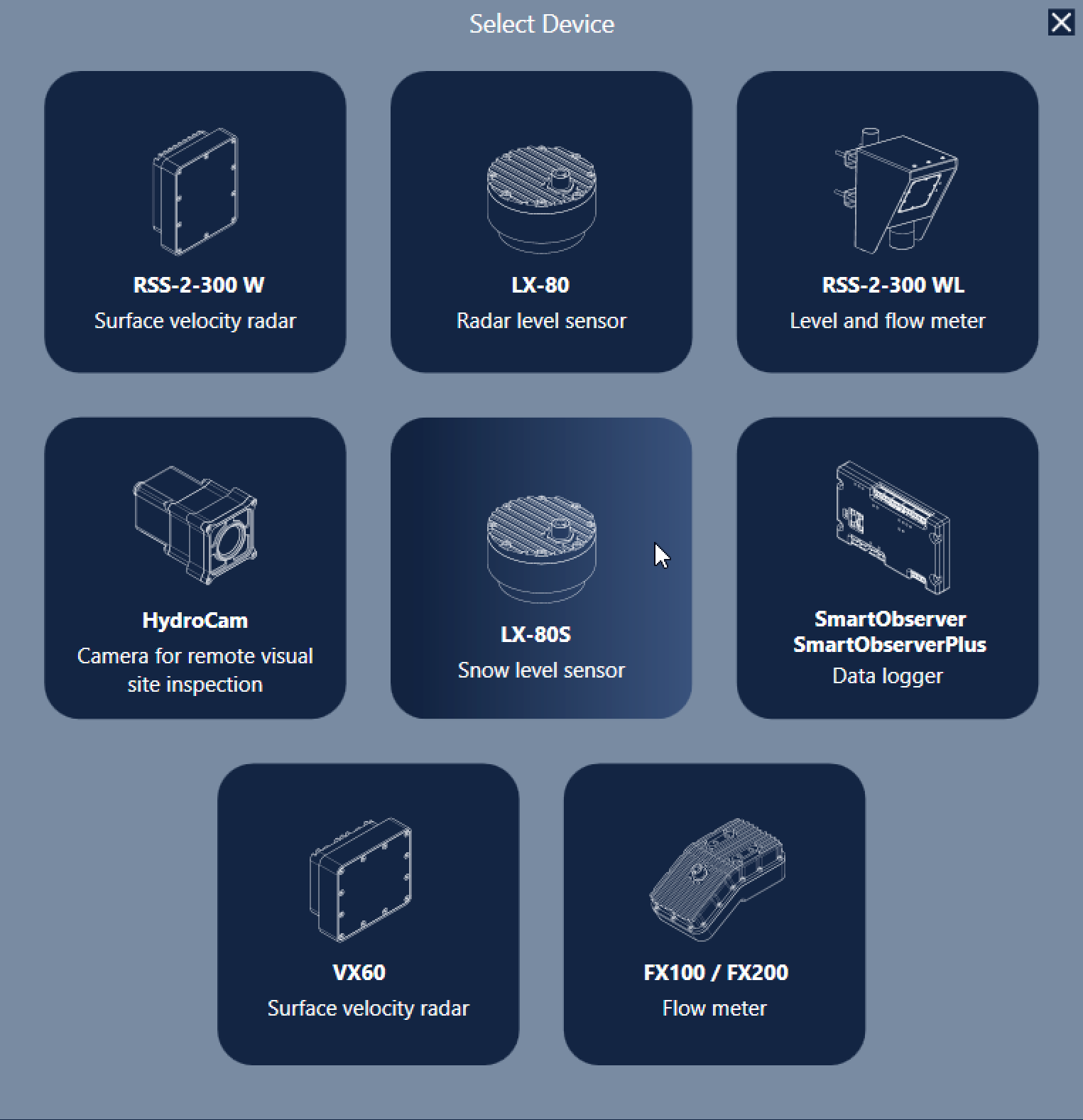
Device selection window.#
Then, select the appropriate COM port and communication interface. If RS-485 is selected, you must also configure the baud rate, and the Modbus device ID. If multiple devices are connected to the same RS-485 bus, ensure that each device has a unique Modbus ID.
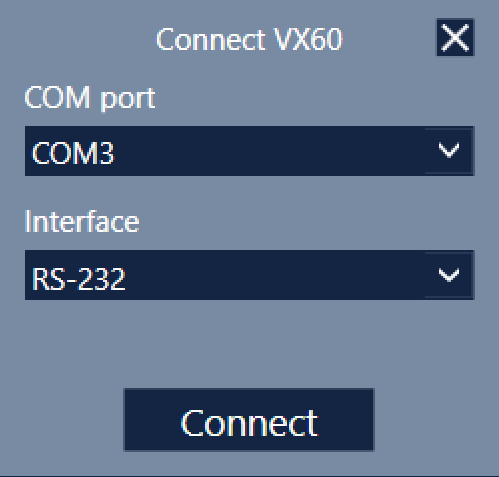
RS-232 connection parameters.#
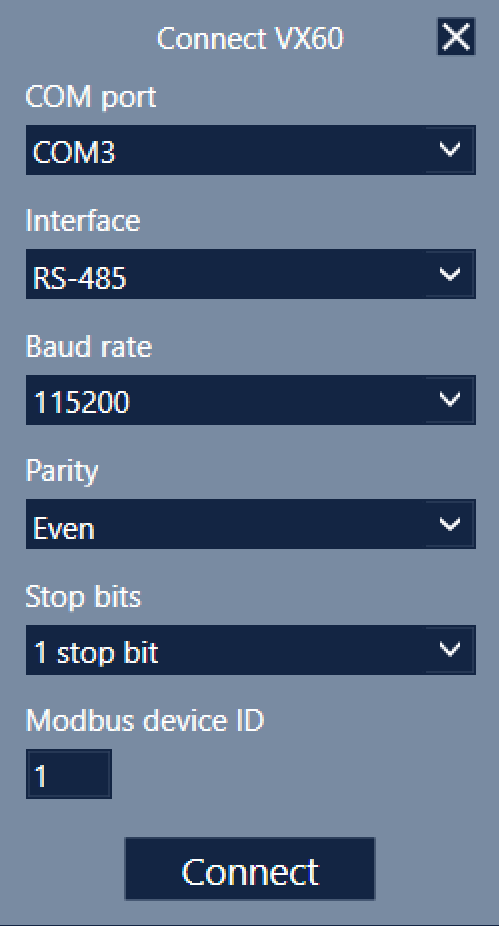
RS-485 connection parameters.#
After clicking Connect, the application attempts to establish communication with the device. If the connection is successful, the device appears under Connected devices on the left. Live flow velocity measurements are displayed in the Data tab, as numerical values and time-series graphs.
Hovering the mouse pointer over a parameter icon displays a detailed description of that parameter. By default, only the most important parameters are shown. Clicking the arrow button next to the displayed parameters expands the view to show all available data.
Clicking Start recording data begins recording the primary displayed measurements and saves them to a .csv file.
If the RS-232 interface is used and excessive checksum errors are detected, the interface, COM port, and baud rate text under Connected devices will turn red, indicating a communication error.
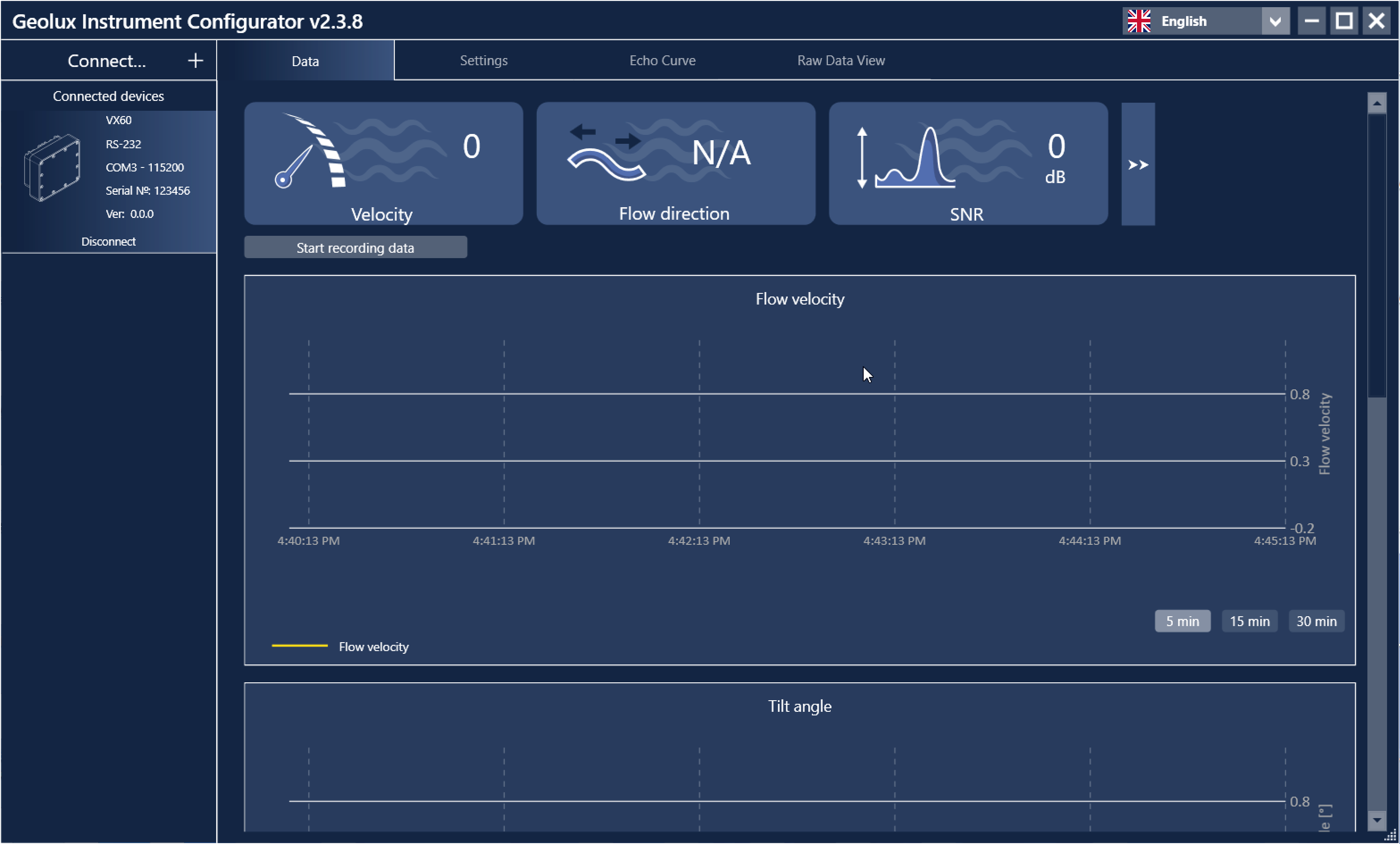
Data view page.#